
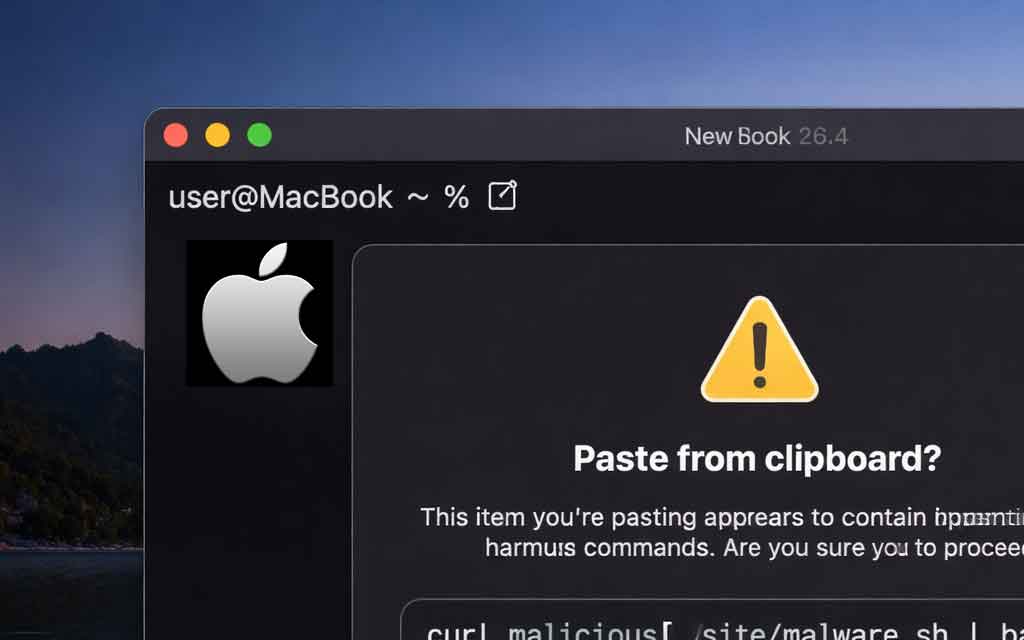
Apple has quietly introduced a powerful new security layer in macOS Tahoe 26.4 to protect users from one of the fastest-growing threats on macOS: copy-paste attacks that trick people into running malicious commands in Terminal. The update adds intelligent paste warnings that detect suspicious commands copied from websites or other apps, display a clear alert, and block automatic execution — giving users a critical moment to pause and think before potentially compromising their Mac.
This feature directly targets ClickFix and similar social engineering scams, where attackers use fake CAPTCHA prompts, support pages, or “fix your Mac” instructions to get users to copy and paste harmful code into Terminal. Once executed, these commands can install info-stealers, grant remote access, or steal sensitive data — all while bypassing traditional antivirus because the user “approves” the action themselves.
What Is the New Terminal Paste Warning in macOS 26.4?
When you copy a command from Safari, Chrome, or another app and attempt to paste it into Terminal on macOS Tahoe 26.4, the system now intervenes if it detects potentially risky content.
The warning dialog typically reads:
Possible malware, Paste blocked. Your Mac has not been harmed. Scammers often encourage pasting text into Terminal to try and harm your Mac or compromise your privacy. These instructions are commonly offered via websites, chat agents, apps, files, or a phone call.
Users then see options to cancel or Paste Anyway. The feature is described as “browser-aware,” meaning it’s more likely to trigger on text copied directly from web browsers than from local text editors or another Terminal window.
Importantly:
- The warning does not permanently block the paste — advanced users can override it.
- In early testing and beta versions, the prompt often appears only once per session or upgrade for frequent Terminal users, reducing annoyance for developers and power users.
- Apple did not highlight this change in the official macOS 26.4 release notes, making it a stealthy but effective addition discovered by users shortly after the update rolled out in late March 2026.
Why Apple Is Fighting Copy-Paste Attacks Now
macOS has long enjoyed a reputation for strong built-in security, but social engineering attacks like ClickFix have surged. These scams don’t rely on zero-day exploits or malware downloads — they exploit human trust:
- Users encounter a convincing fake page (often via malicious Google Ads or sponsored results) claiming a problem like “your Mac is infected” or “complete human verification.”
- The page displays a fake CAPTCHA or button that copies a malicious command (sometimes obfuscated with Base64 encoding) to the clipboard.
- Instructions tell the user to press Command + Space, open Terminal, and paste the command.
- Execution can download and run info-stealers (such as Atomic macOS Stealer), exfiltrate passwords, cookies, crypto wallets, or establish backdoors.
Because the command runs with the user’s permissions and no unsigned app is installed, many traditional defenses miss it. ClickFix and related tactics accounted for a significant portion of macOS malware loaders in recent years.
Apple’s new safeguard adds friction at the exact moment of risk — the paste action — without breaking legitimate workflows for developers who regularly work with Terminal.
Technical Details and How It Works
- Detection: macOS analyzes the pasted content for patterns commonly associated with malicious scripts (e.g., commands that download files, modify system settings, or execute remote payloads).
- Context awareness: Stronger triggers when the source is a web browser versus trusted local sources.
- User override: The “Paste Anyway” button ensures power users and IT professionals aren’t hindered.
- One-time or reduced prompting: Designed to avoid alert fatigue; experienced users may see it less frequently.
This builds on Apple’s broader security philosophy of layered protections — combining Gatekeeper, XProtect, MRT, and now proactive clipboard/ Terminal monitoring.
Impact on Mac Users and the Security Landscape
For average users, this is a game-changer. A single mistaken paste no longer has to lead to compromise. It educates users in real time about the dangers of blindly following online instructions involving Terminal.
For developers and sysadmins:
- Minimal disruption for trusted workflows.
- Best practice reminder: Always inspect pasted commands, especially from the web. Pasting into a text editor first remains a smart habit.
Security experts have praised the move as a simple yet highly effective counter to rising social engineering threats. Some have even suggested similar protections should come to Windows Command Prompt or PowerShell.
How to Stay Safe from Terminal-Based Scams
Even with Apple’s new protection:
- Never paste commands into Terminal unless you fully understand every part of them.
- Be extremely skeptical of any website or support call asking you to open Terminal and run pasted code.
- Verify sources — legitimate Apple support rarely requires raw Terminal commands.
- Keep macOS updated to receive the latest safeguards.
- Consider using a text editor as an intermediate step to review and edit commands before pasting.
macOS Tahoe 26.4 is now available as a free update for compatible Macs. If you haven’t updated yet, enabling automatic updates ensures you get this and other security improvements quickly.
The Bigger Picture: Apple’s Ongoing War on Social Engineering
This Terminal paste warning fits into Apple’s accelerating security cadence. As malware authors shift from technical exploits to human-targeted tricks, Apple is responding with smarter, user-facing protections that make attacks harder without sacrificing usability.
The feature underscores a key truth in 2026 cybersecurity: the weakest link is often the user being tricked into helping the attacker. By inserting a thoughtful pause at the paste step, Apple has raised the bar for ClickFix-style scams significantly.
Stay tuned to vfuturemedia.com for in-depth coverage of macOS updates, cybersecurity threats, Apple security features, and how evolving protections shape the future of personal computing. Whether you’re a casual user or a Terminal power user, understanding these safeguards helps keep your Mac secure in an increasingly tricky threat landscape.




Leave a Comment